
Connect your intraoral scanner to Circle One.
Pair your scanner account once. Then send each case in one click, scans imported and patient reference synced. Compatibility matrix
- No file export
- Patient reference synced
- Any other scanner: STL, PLY
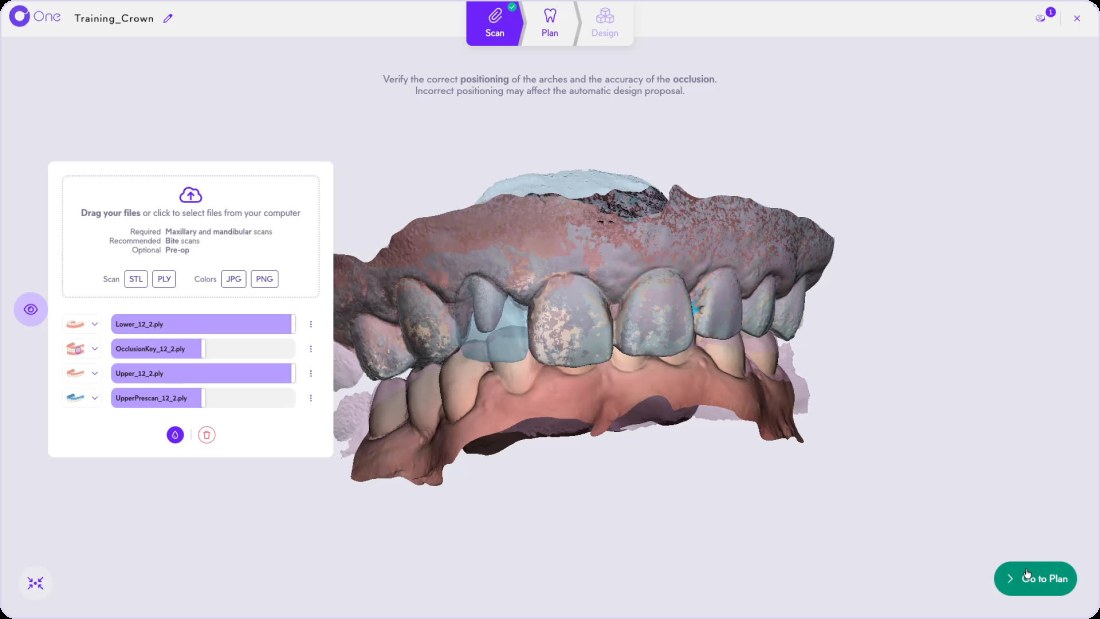
How do I send scans from my scanner to Circle One?
Pair your scanner’s cloud account with Circle One once, then send each case from the scanner software in one click. With any other intraoral scanner, export STL or PLY files and drop them into a new case.
Read Step · Scan control in the Help CenterPair your scanner, click by click
Pair once, then send each case in one click.
Shining 3D Dental Cloud
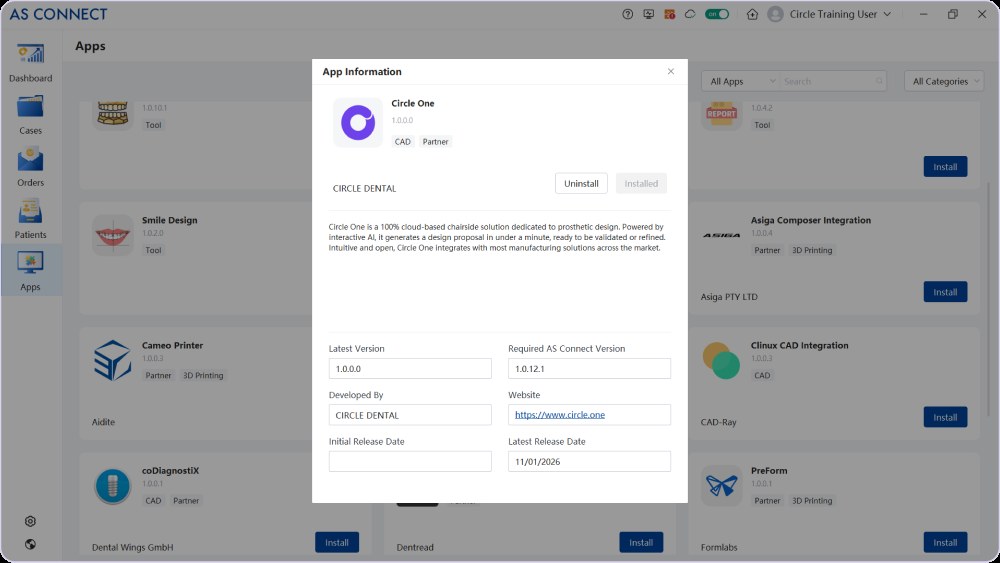
Alliedstar AS Connect
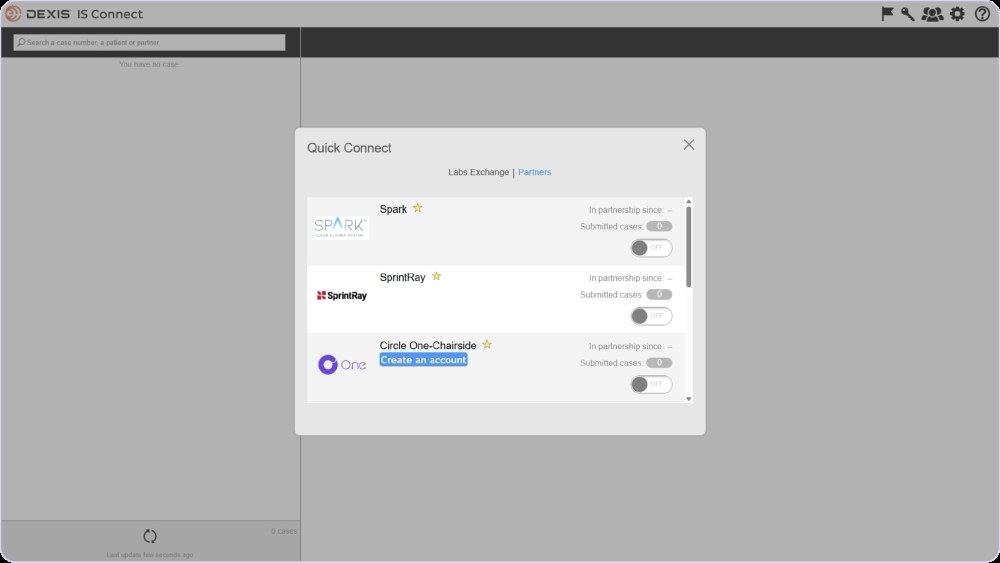
DEXIS IS Connect
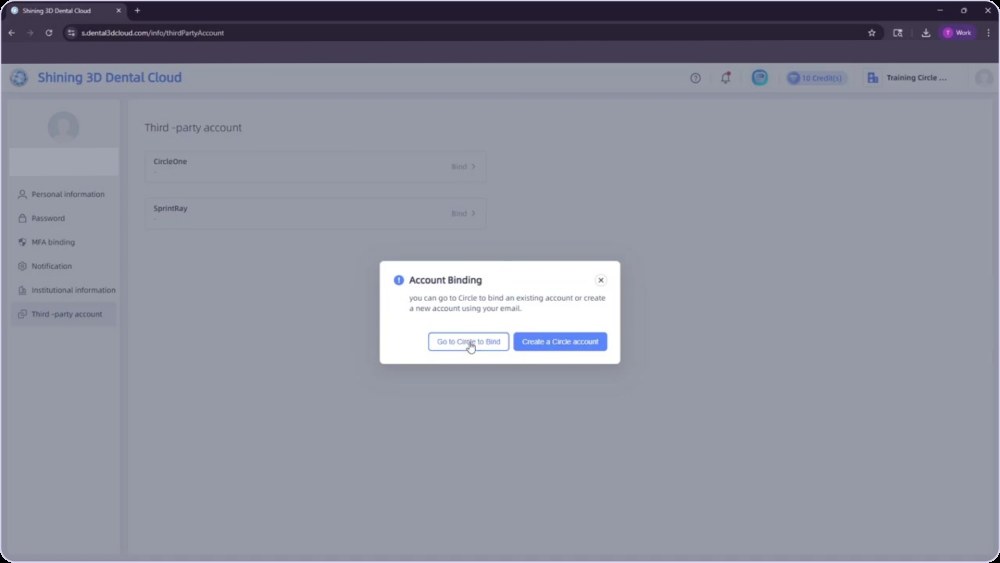
Shining 3D: Account Settings › Third-party account › Go to Circle to Bind · Alliedstar: Apps › Circle One · DEXIS: Quick Connect › Partners › Circle One-Chairside
Pair, send, design
- 1
Pair your account once
Link your scanner cloud account to Circle One from the scanner software.
- 2
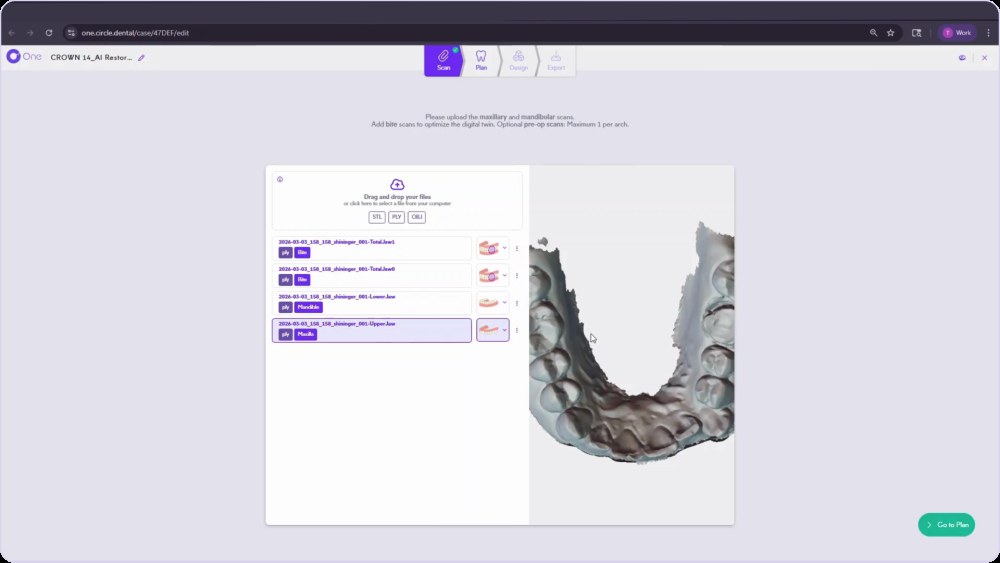
Send the case from your scanner
Choose the scans and send them. The case opens in Circle One with the scans already imported.
- 3
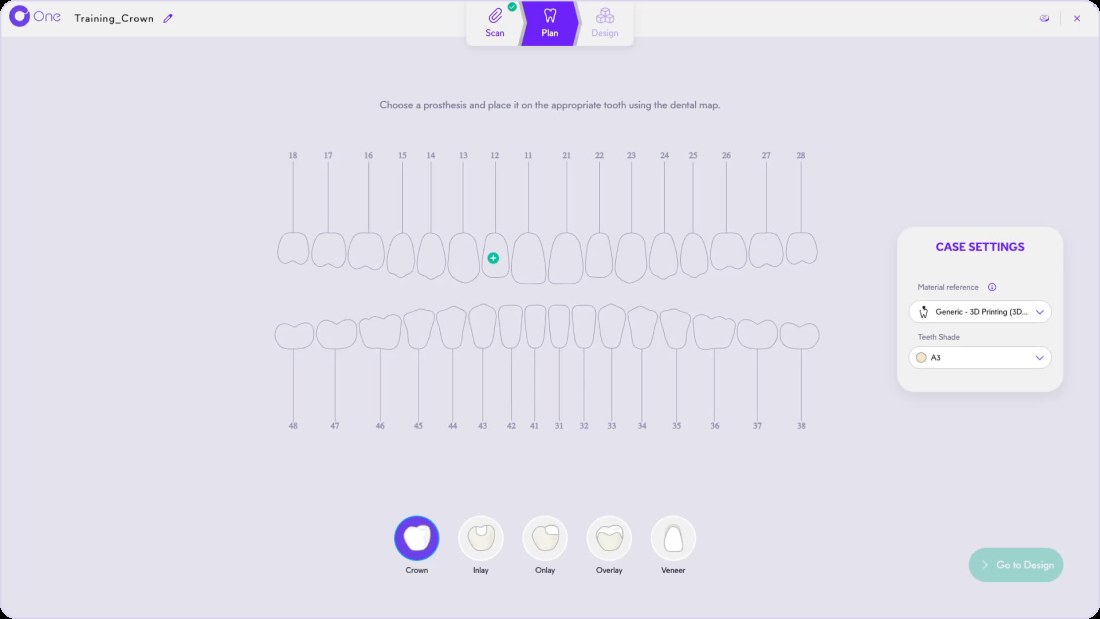
Check the scans, go to Plan
Review the maxillary, mandibular and bite scans in the viewer, then select the prosthesis on the map. Crown design
Manual import, in two clicks
Drag and drop your files on the home page, or click Create case. Then edit the case reference if needed.
- Required: maxillary and mandibular scans
- Recommended: bite scans
- Optional: pre-op scan, one per arch. Copy a tooth
- Formats: STL, PLY
Every scanner guide
Scanner connection FAQ
Do I need to pair my scanner for every case?
No. Pair your account once; then send each case from the scanner software.
My scanner is not listed. What can I do?
Export STL or PLY files from your scanner and drop them into a new case in Circle One. Compatibility matrix
Is the patient reference kept?
With partner scanners, the patient reference is synced with the case. You can edit the reference at any time.
Can I add a pre-op scan?
Yes, one pre-op scan per arch, to copy the original tooth shape. Copy a tooth: 3 methods
Send your first scan today.
Create your account, pair your scanner, design your first case.
1 credit = 1 prosthetic tooth · No subscription · ISO 13485
*Average adjustment time after the automatic design proposal, measured in internal tests.
The whole chairside workflow
Send your first scan today
Create your account


